Editing Special Action Keywords
Several keywords support a Special Action button in the (A)ction column. Click the … chooser in the A column to launch a special action dialog box for each of the following keywords.
For more information, see the following subsections below:
- Edit BACKUP_PATH
- Edit BACKUP_TIME
- Edit COPY_BACKUP_TO
- Edit DBS_TRANSACTION_LOG_DIR
- Edit ENCRYPTION_KEY_FILE
- Edit REPL_SOURCE
- Edit SVC_PORT
Edit BACKUP_PATH
BACKUP_PATH specifies the path to the backup directory for the service files. The path can be relative or absolute. If the path contains spaces it must be enclosed in quotation marks. The service will create the backup folder if it does not exist.
Use this Special Action to set the same base directory for all filtered services and optionally to include the site name in the path.
|
Set base directory |
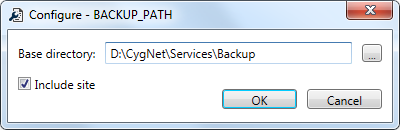
- Click … to launch the BACKUP_PATH dialog box.
- Specify a common Base directory or click … to browse to a location where the backup service files should be written.
- Select Include site to append the site name to the backup path resulting in a backup subdirectory. For example, D:\CygNet\Services\Backup\DDS\MYSITE.
- Click OK.
- Once you have made all desired changes, click Finish to review and save changes.
Edit BACKUP_TIME
BACKUP_TIME specifies the time for the daily backup to run (24-hour format 0000 to 2359, do not use a colon). If this keyword is not enabled for a service or no time is specified, the automatic backup will not occur. Service backup will only occur if manually initiated or scheduled via the MSS.
Use this Special Action to set the start time and interval (offset) for this keyword for all services.
|
BACKUP_TIME |
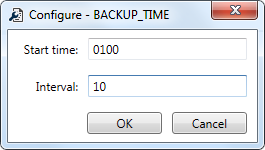
- Click … to launch the BACKUP_TIME dialog box.
- Specify a Start time in 24-hours format, HHMM, no colon.
- Specify Interval or offset for each service in minutes.
- Click OK.
- Once you have made all desired changes, click Finish to review and save changes.
The services will be iterated in alphabetical order and each BACKUP_TIME will be set to the start time, plus the interval for each service. For example, if Start time is set to 0100 and Interval is set to 10 minutes, the ACS Backup Time would be set to start at 01:00, the APPS Backup Time would be set to start at 01:10, the ARS Backup Time would be set to start at 01:20, and so on.
Edit COPY_BACKUP_TO
COPY_BACKUP_TO enables copying of the backup service files to the specified directory once the backup process is complete. The path can be relative or absolute. If the directory does not exist the service will create it. If the path or directory name contains spaces, the parameter must be enclosed in quotation marks. If you specify a network drive and are running the CygNet services as system services, you must use the Universal Naming Convention (UNC) (\\Workstation\Path) to specify the path. The backup file can be copied to a network drive only if the drive is mapped to the local machine.
Use this Special Action to set the same base directory for all filtered services and optionally to include the site name in the path.
|
COPY_BACKUP_TO |
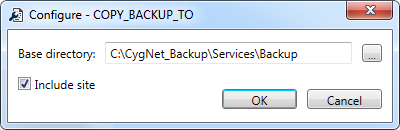
- Click … to launch the COPY_BACKUP_TO dialog box.
- Specify a common Base directory or click … to browse to a location where the backup service files should be copied.
- Select Include site to append the site name to the backup path resulting in a backup subdirectory. For example, C:\CygNet_Backup\Services\Backup\DDS.
- Click OK.
- Once you have made all desired changes, click Finish to review and save changes.
Edit DBS_TRANSACTION_LOG_DIR
DBS_TRANSACTION_LOG_DIR sets the directory where the transaction log files are stored. You cannot specify the main service directory, but it can be a subdirectory or another location. You can specify a different (faster or smaller) drive, or another location if the txlogs directory is being used for something else.
The DBS_TRANSACTION_LDIR (TxLogs Folder) info item can be used to retrieve the fully qualified path.
|
DBS_TRANSACTION_LOG_DIR |
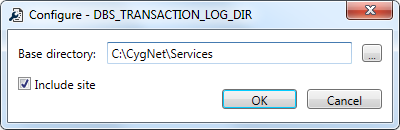
- Click … to launch the DBS_TRANSACTION_LOG_DIR dialog box.
- Specify a common Base directory or click … to browse to a location where the transaction log files are stored.
- Select Include site to append the site name to the backup path resulting in a backup subdirectory. For example, C:\CygNet\Services\DDS\MYSITE.
- Click OK.
- Once you have made all desired changes, click Finish to review and save changes.
Edit ENCRYPTION_KEY_FILE
ENCRYPTION_KEY_FILE specifies the name and location of the common encryption key file that stores an AES key used to encrypt and decrypt several usernames and passwords used by CygNet Software. The default file location is the root of the Services directory. See Encrypted Keywords for more information. The file should only be read by the user running the related services and any user that needs to run the Config File Manager, which can be used to change (re-encrypt) any related keyword(s). The Config File Manager can be used to create a new encryption key file, if one did not previously exist.
Use this Special Action to create a new encryption key file.
Note: This feature is only available for local configuration files. If you have loaded remote configuration files, you will be warned of this.
|
ENCRYPTION_KEY_FILE |
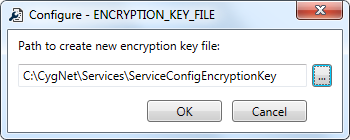
- Click … to launch the ENCRYPTION_KEY_FILE dialog box.
- If an encryption key file exists for any service, the path and file name will be displayed.
- Click … to specify a path to a new encryption key file.
- If an encryption key file already exists at the destination, you must change the file name or path. You can't overwrite an existing file.
- Click OK to decrypt all currently encrypted keywords with the old file, and the re-encrypted using the new file. Additionally, the value for the ENCRYPTION_KEY_FILE keyword will be updated with the new path.
- Once you have made all desired changes, click Finish to review and save changes.
Note: If there are any encryptable keywords that remain in plain text when you click Finish, you will be warned and asked if you want to encrypt the keywords.
Edit REPL_SOURCE
The REPL_SOURCE keyword specifies the Domain and Site.Service name for the source service to be replicated in the format [DDDD]SITE.SERVICE. The REPL_SOURCE value requires the same service name, with a different domain prefix. If not specified, replication is disabled. Applies to all services except ARS, FMS, and RSM.
Note: This keyword is specified in the configuration file for the replicated (destination) service.
The REPL_SOURCE (Repl Source Service) info item will report the source service name from which the replicated service is requesting changes.
Use this Special Action to update the domain and status for all services with a single mass action.
|
REPL_SOURCE |
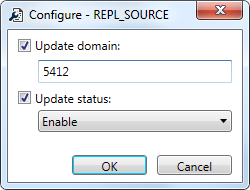
- Click … to launch the REPL_SOURCE dialog box.
- Click the Update Domain check box and specify a Domain for the replication source for all services. Note that the keyword must be enabled before you can modify the domain.
- Click the Update Status check box and select the desired status from the drop-down menu: Enable or Disable replication on all services.
- Click OK.
- Once you have made all desired changes, click Finish to review and save changes.
The new source domain will be added to the keyword for all services.
Edit SVC_PORT
The SVC_PORT keyword specifies the UDP port number for this service. Each service on the computer must have a unique port number. Use the Config File Manager to ensure that all ports for all services on a given server are unique.
Use this Special Action to "fix" each keyword to be unique, if it's not already. It is recommended that all service configuration files for a given host server be included before running this operation.
For each unique server (represented by the filtered services) the keywords will iterate in alphabetical order and assign a unique port value starting with the user-defined port, and incrementing by the value specified in the interval.
Note: If you specify an Interval greater than 1, and then later need to add a site to the host, there will be a gap in the SVC_PORT numbers, allowing you to add a site with an adjacent number, rather than in a different range.
|
SVC_PORT |
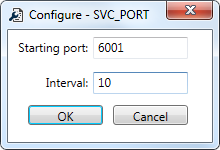
- Click … to launch the SVC_PORT dialog box.
- Click OK to close the warning about including all configuration files.
- Specify a Starting port.
- Specify an Interval between 1 and 1000.
- Click OK.
- Once you have made all desired changes, click Finish to review and save changes.


